Quiz Builder Overview
The Quiz Builder is the heart of ShopperQuiz. It's where you design every question, assign votes to products, and control exactly how shoppers experience your quiz. Everything — from the welcome screen to the final results — is configured here.
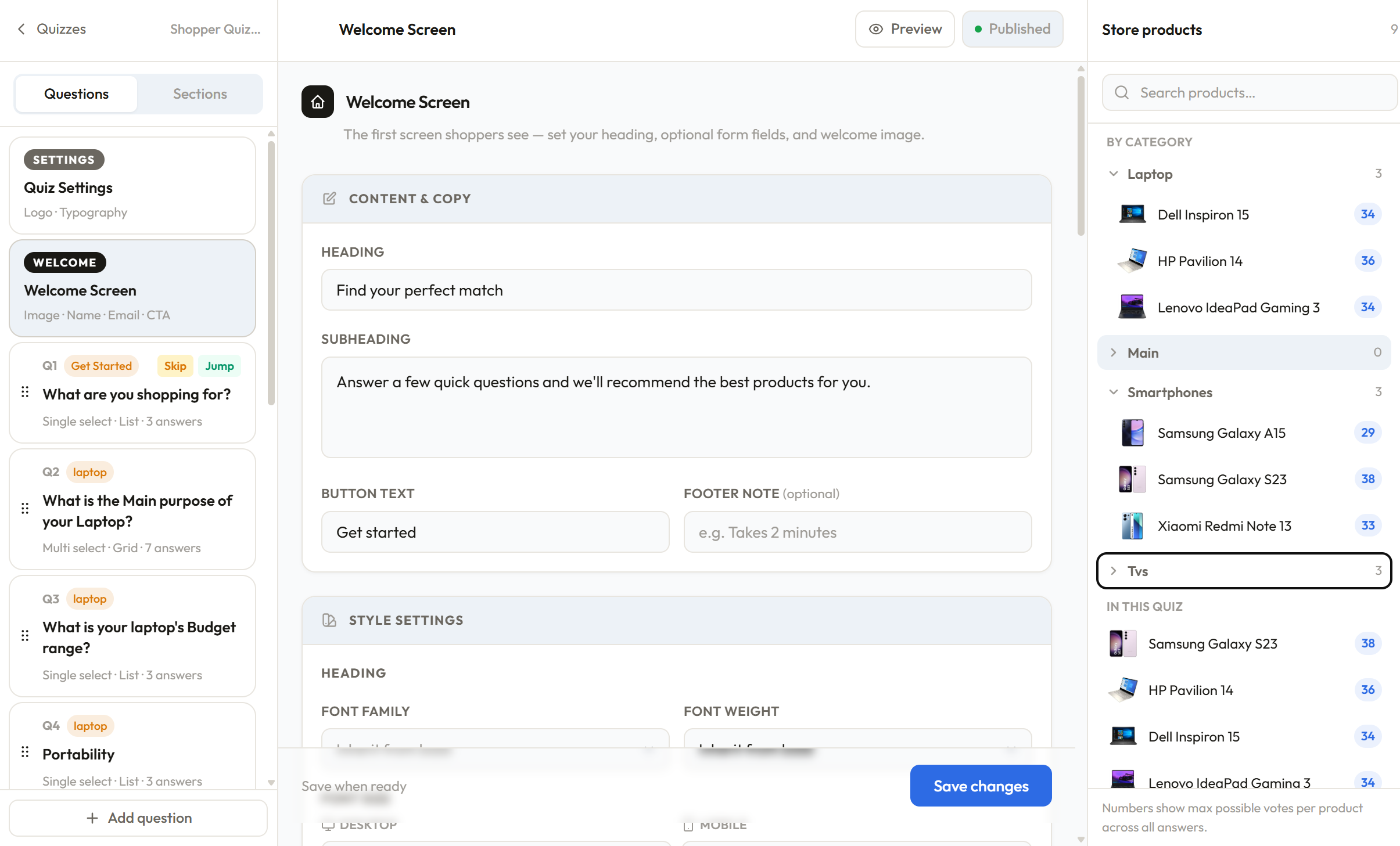
The three-panel layout
The Quiz Builder uses a three-panel layout designed to keep everything in view while you work.
Left panel — Question list A scrollable list of everything in your quiz, with two tabs: Questions and Sections. In the Questions tab, items always appear in this order: Quiz Settings at the top, then Welcome Screen, then your questions, then Results Screen at the bottom. An Add question button sits in the footer. Click any item to open it in the center panel. Questions can be dragged to reorder them.
Center panel — Editor This is where you edit. What renders here depends on what you've selected in the left panel — the Quiz Settings editor, Welcome Screen editor, a question editor, or the Results Screen editor.
Right panel — Store products Your full product catalog, organized by collections, tags, and individual products. Each product shows its current total vote count — the maximum votes it can accumulate across the entire quiz. This updates live as you assign votes, so you can see at a glance whether products are well-represented or being left out.
On smaller screens, the products panel collapses into a slide-in drawer accessible via the Products button.
What's in the question list
Quiz Settings — always at the top. Controls your quiz logo and typography. Opens the settings editor in the center panel.
Welcome Screen — directly below Quiz Settings. This is the first screen shoppers see before the quiz starts. Opens the welcome editor.
Your questions — listed in order between the Welcome Screen and Results Screen. Each shows its question number, section tag if assigned, question text, and any logic badges (filter, skip, jump). Drag to reorder.
Results Screen — always at the bottom. Controls layout, cart buttons, and fallback behavior. Opens the results editor.
The Sections tab
Switching to the Sections tab in the left panel lets you manage quiz sections — labels that group questions and appear above the progress bar as shoppers move through the quiz. You can add, rename, recolor, and delete sections here. Sections are purely visual and don't affect vote logic.
Question types
Each question has one of two types:
Single select — the shopper picks one answer and moves on. Best for questions where only one answer applies, like "What is your skin type?"
Multiple select — the shopper can pick more than one answer before continuing. You control the minimum and maximum number of selections. Best for questions like "What are your hair concerns?" where multiple things may apply.
Answer display styles
Answers can be displayed in four styles:
- Default — text-only answer buttons, clean and minimal
- Checkmarks — answers with a checkmark indicator, good for multiple select
- Icons — each answer has a small image thumbnail alongside the label
- Images — each answer has an uploaded image, good for visual choices like styles or shades
Vote assignment
This is the core mechanic. Every answer you create can be assigned votes for products. When a shopper selects that answer, those votes are added to a running total. At the end of the quiz, the products with the most accumulated votes become the recommendations.
Each answer can assign votes in one of four ways:
- To specific products individually
- To all products in a collection
- To all products with a specific tag
- To all products in the store (useful for "Not sure" type answers)
The right panel shows the cumulative vote totals across the entire quiz, so you always know which products are being favored.
Filter questions
A question can be marked as a filter question. When it is, the shopper's answer permanently eliminates products that don't match — regardless of how many votes those products accumulate from other questions.
For example: if you ask "Do you want a vegan product?" and the shopper selects Yes, all non-vegan products are removed from the results entirely, even if they had high votes from earlier questions. Filters run before votes are counted, and each filter question narrows the eligible product pool further.
Skip and jump logic
Each answer can carry logic that affects the quiz flow:
Skip — when this answer is selected, specific future questions are hidden and skipped. Votes from skipped questions are not counted.
Jump — when this answer is selected, the quiz jumps directly to a specific future question, bypassing everything in between.
Skip and jump are mutually exclusive per answer. Logic only moves forward, never backward.
Saving your quiz
Changes are saved per section — the question editor, welcome editor, results editor, and quiz settings each have their own Save button. Nothing auto-saves, so make sure to save after making changes.
Next steps
- Welcome Screen — configure what shoppers see before the quiz starts
- Questions and Answers — deep dive into question settings
- Vote Assignment — how votes work and how to assign them effectively
- Filter Questions — eliminate products based on shopper answers
- Skip & Jump Logic — control the quiz flow per answer
Was this page helpful?